
 My Inquiry
 My Account


Type C Explained: USB-C Cable, HDMI Adapter and USB-A Compatibility Guide
Article Details
Type C, more formally called USB Type-C or USB-C, is a reversible connector used for charging, data transfer, display output, and accessory connection. The connector shape is only one part of the system. Real performance depends on the USB protocol, cable construction, power delivery capability, host-device support, peripheral-device support, and any adapter in the connection path.
This is where many Type C compatibility problems begin. A Type C port may look identical on a laptop, phone, monitor, charger, docking station, or embedded device, but the supported functions can be very different. One port may support only basic USB 2.0 data and charging, while another may support high-speed data, USB Power Delivery, DisplayPort Alternate Mode, and external monitor output.
For engineering, repair, sourcing, and device compatibility work, Type C should be checked as a complete connection path: connector, cable, host device, peripheral device, power demand, signal requirement, and adapter chain.
What Is Type C?
Type C refers to the physical USB connector design with a small oval shape and reversible insertion. Unlike USB-A, which has a fixed plug direction, a Type C plug can be inserted either way. This makes it more convenient in consumer devices and easier to package in thin laptops, tablets, phones, docking stations, and compact electronic equipment.
The important point is that Type C does not automatically mean fast charging, high-speed data, or video output. The same connector can be used with very different electrical capabilities. A basic Type C charging cable may support only USB 2.0 data, while a full-featured USB-C cable may support higher current, faster data transfer, and alternate-mode video signals.
The USB Type-C cable and connector system is defined by USB-IF, including connector behavior, plug orientation, cable requirements, configuration channel functions, and related electrical characteristics. (USB Implementers Forum, USB Type-C Cable and Connector Specification)
Type-C vs USB-C: Are They the Same?
In most product descriptions and search queries, Type-C and USB-C refer to the same connector family. "USB-C" is the more formal industry and consumer electronics term, while "Type C" is widely used in cable listings, adapter names, charger descriptions, and general searches.
| Term | Meaning | Common Use |
|---|---|---|
| Type C | Common shorthand for USB Type-C connector | Search queries, cable names, adapter descriptions |
| USB-C | Widely used name for USB Type-C | Laptops, phones, chargers, docks, accessories |
| USB Type-C | Formal technical name | Specifications, datasheets, engineering documents |
For technical content and product pages, it is usually worth using both names naturally. A buyer may search for "type c cable," while an engineer may search for "USB Type-C connector" or "USB-C adapter." The terms overlap, but they capture different search habits.
USB Type-C Connector vs USB Protocol
A common source of confusion is treating the Type C connector and the USB protocol as the same thing. The connector is the physical interface. The protocol determines data speed, device communication, power behavior, and supported functions.
For example, a Type C port may support USB 2.0, USB 3.2, USB4, Thunderbolt-compatible operation, charging only, or display output through an alternate mode. The port shape alone does not confirm any of these functions. This is why two Type C cables can look nearly identical but behave very differently in use.
| Item | What It Defines | Why It Matters |
|---|---|---|
| Type C connector | Physical plug and receptacle shape | Determines whether the cable can physically connect |
| USB protocol | Data transfer standard and signaling method | Determines transfer speed and device communication |
| USB Power Delivery | Power negotiation between charger, cable, and device | Determines charging voltage, current, and power level |
| Alternate Mode | Use of Type C pins for non-USB signals such as DisplayPort | Determines whether video output can work |
This distinction explains many real-world failures. The connector fits, but the required function may not be supported by the port, cable, or adapter.
Type-C Cable Types: Charging, Data, and Video
Type C cables should be selected by application, not only by connector shape. A cable used for low-current charging has different requirements from a cable used for a docking station, external SSD, monitor output, or USB-powered embedded device.
For charging, the main parameters are current rating, conductor resistance, cable length, and device power demand. A long or thin cable can cause measurable voltage drop when current is high. The device may still charge, but charging speed can fall, voltage at the device may become unstable, and cable heating may increase.
For data transfer, the relevant checks are USB speed rating, shielding, internal pair construction, and device support. Some Type C cables support only USB 2.0 data even though they use the same connector. That may be acceptable for charging cables, but it is not suitable for high-speed storage, video capture devices, development tools, or docking stations.
For video output, the Type C cable and source device must support the required display path. A cable that works for charging is not automatically suitable for HDMI or DisplayPort output.
| Use Case | Required Focus | Common Risk |
|---|---|---|
| Charging | Current rating, cable length, conductor gauge | Voltage drop, slow charging, cable heating |
| Data transfer | USB speed rating, shielding, device support | Unexpectedly low transfer speed |
| Video output | Alt Mode support, adapter quality, HDMI cable rating | No display, flicker, reduced resolution |
| Docking station | Power, data, video, and device negotiation | Only part of the dock works correctly |
Type-C to HDMI: Why Compatibility Depends on Alt Mode
Type-C to HDMI connections are common on laptops, tablets, phones, projectors, monitors, and meeting-room displays. The connection appears simple: a Type C port connects to an HDMI display through a cable or adapter. In practice, the first check is whether the Type C source device supports video output at all.
Many compact Type-C to HDMI adapters rely on DisplayPort Alternate Mode from the USB-C source side, then convert that signal to HDMI inside the adapter. If the laptop, tablet, or phone does not support video output through its Type C port, the adapter cannot create a video signal by itself.
VESA describes DisplayPort Alternate Mode as a method that allows DisplayPort signals to operate over the USB Type-C connector for display applications. (VESA, DisplayPort Alternate Mode on USB-C)
When a Type-C to HDMI setup does not work, the issue is usually one of these points:
- The Type C port does not support video output.
- The adapter does not support the required resolution or refresh rate.
- The HDMI cable is too long or not rated for the selected video mode.
- Too many adapters, couplers, wall plates, or extensions are used in the signal path.
- The monitor or projector input does not support the selected mode.
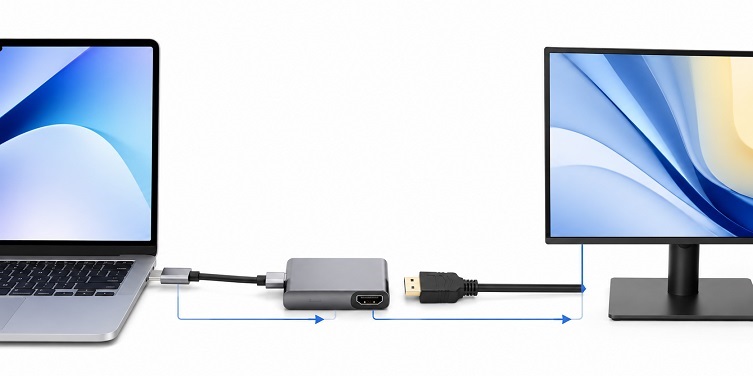
For that reason, Type-C to HDMI should be evaluated as a complete signal chain rather than a simple connector conversion. The source device, Type C port capability, adapter conversion, HDMI cable, display input, resolution, and refresh rate all affect the result.
HDMI Cable Length and Adapter Count
HDMI signal reliability depends on cable length, cable construction, signal bandwidth, adapter count, and the selected video mode. A short HDMI cable may work reliably at 4K, while a longer cable with the same connector may fail at the same resolution. The connector is not the limiting factor in most cases; signal attenuation and reduced margin across the cable path are the real issues.
HDMI cable categories and certification programs are based on performance levels, and different cable types are intended for different bandwidth and application ranges. (HDMI Licensing Administrator, HDMI Cable Overview)
For a Type-C to HDMI setup, the HDMI side should be checked after confirming that the Type C source supports video output. Once the source and adapter are suitable, the next question is whether the HDMI cable length and rating can support the required resolution and refresh rate.
For example, a short cable may be stable at 1080p, while a longer cable may become unreliable at 4K 60Hz. Adding a dock, coupler, wall plate, extension cable, or extra adapter can further reduce signal margin. At this stage, the HDMI Cable Length & Signal Compatibility Tool can be used to estimate whether a setup is likely to remain compatible based on cable length, video mode, cable speed rating, cable construction, and adapter count.
This is a practical check because HDMI compatibility is not defined by the connector alone. It depends on the signal condition at the display end of the complete cable path.
USB-A to Type-C Adapter: What It Can and Cannot Do
USB-A to Type-C adapters are useful when connecting older computers, chargers, power banks, flash drives, keyboards, test equipment, and accessories to newer Type C devices. They are convenient, but they also lead to many wrong assumptions.
A USB-A to Type-C adapter does not turn a USB-A port into a full USB-C port. It only changes the physical connection. The original USB-A port still determines available power, data speed, and supported functions.
| Question | Practical Answer |
|---|---|
| Can USB-A to Type-C support charging? | Yes, but charging speed depends on the USB-A charger, cable, and device limit. |
| Can USB-A to Type-C support data transfer? | Yes, if the cable and adapter are wired for data and the devices support it. |
| Can USB-A to Type-C support HDMI video? | Normally no. USB-A does not natively provide Type C Alt Mode video output. |
| Can it provide full USB-C Power Delivery? | No. USB Power Delivery over Type C requires proper Type C and PD negotiation. |
The main limitation is that USB-A lacks the configuration and alternate-mode behavior of a true Type C port. A USB-A to Type-C adapter may be enough for charging or basic data transfer, but it should not be expected to support every USB-C function.
USB-A vs Type-C: Power, Speed, and Connector Differences
USB-A was designed as a rectangular host-side connector and remains common on computers, chargers, hubs, test equipment, and industrial accessories. Type C is smaller, reversible, and designed to support more flexible combinations of power, data, and alternate-mode signals.
The difference is not only mechanical. Type C systems can support more advanced negotiation between devices, especially when USB Power Delivery and full-featured cables are involved. USB-A is still useful, but it is less flexible for modern multi-function connections.
| Feature | USB-A | Type C / USB-C |
|---|---|---|
| Connector orientation | One-way insertion | Reversible insertion |
| Common use | Legacy computers, chargers, peripherals | Modern phones, laptops, tablets, docks, monitors |
| Video output | Not native through standard USB-A | Possible when Alt Mode is supported |
| Power flexibility | Limited by charger and USB generation | Can support higher negotiated power with proper PD design |
| Adapter behavior | Often used to connect older hosts to newer devices | Can connect to USB-A, HDMI, DisplayPort, hubs, docks, and chargers |
For compatibility planning, USB-A should be treated as a legacy host interface, while Type C should be treated as a multi-function connector whose actual capabilities must be verified. The connector shape is only the starting point.
Type-C Cable Voltage Drop and Power Loss
Voltage drop is one of the most practical issues in Type C cable selection, especially for charging, embedded devices, development boards, USB-powered modules, and long cable runs. Even when the charger can supply enough power, the voltage at the device may be lower than expected because cable conductors have resistance.
The basic relationship is straightforward: higher current, longer cable length, and smaller conductor size increase voltage drop. Power loss also increases with current and resistance, and that lost power becomes heat in the cable. In low-power accessories this may not matter much. In high-current charging or USB-powered equipment, it can become a real reliability problem.
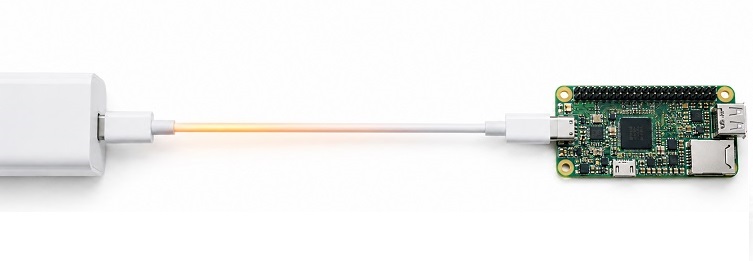
For example, a Type C cable used with a high-current load should be checked by conductor AWG, cable length, current level, and acceptable voltage at the device. A cable that works for a keyboard or mouse may not be suitable for a development board, USB-powered display, or device under heavy charging load.
When the design or troubleshooting process requires a numeric check, the USB Cable Voltage Drop & Power Loss Calculator can be used to calculate voltage drop, power loss, and maximum recommended cable length based on cable type, current, voltage, and conductor AWG. This is useful when selecting a Type C cable for power-sensitive devices or checking whether a long USB cable is causing unstable operation.
| Parameter | Effect on USB Cable Performance |
|---|---|
| Cable length | Longer cables usually increase resistance and voltage drop. |
| Current | Higher current increases voltage drop and power loss. |
| Conductor AWG | Thicker conductors reduce resistance and improve power delivery. |
| Device voltage tolerance | Low-tolerance devices are more sensitive to cable loss. |
How to Choose the Right Type-C Cable or Adapter
The right Type C cable or adapter depends on the required function. A cable selected only by appearance can cause slow charging, no display output, unstable data transfer, or unexpected speed limits. A better method is to define the application first, then match the cable and adapter specifications to that application.
For Charging
Check the device power requirement, charger output, cable current rating, and cable length. If the cable is long or the load current is high, calculate voltage drop before assuming the charger is the problem. In many troubleshooting cases, replacing a thin or long cable solves instability without changing the power supply.
For Data Transfer
Check whether the cable supports the required USB data speed. A Type C cable used for charging may not support high-speed data. For external SSDs, cameras, docks, and test equipment, the data rating matters more than the connector shape.
For HDMI or External Display Output
Confirm that the Type C source device supports video output. Then check the adapter specification, HDMI cable rating, cable length, display resolution, and refresh rate. If the setup includes several adapters or wall plates, signal margin should be checked more carefully.
For USB-A to Type-C Connections
Use USB-A to Type-C adapters mainly for charging and basic data compatibility. Do not expect them to provide full USB-C functions such as native video output or full USB Power Delivery behavior. The adapter cannot add functions that the original USB-A port does not support.
Quick Reference: Type-C Cable and Adapter Selection
| Connection Type | Best Used For | Main Limitation | Recommended Check |
|---|---|---|---|
| Type C to HDMI | Laptop, tablet, or phone display output | Requires video-capable Type C port and suitable HDMI path | Check Alt Mode, resolution, HDMI cable length, and adapter count |
| USB-A to Type-C adapter | Legacy charger or computer connection | Does not provide full USB-C functionality | Check charging current, data wiring, and device compatibility |
| Type C charging cable | Phone, tablet, development board, USB-powered device | Voltage drop and power loss increase with current and length | Check cable AWG, current rating, and expected voltage drop |
| Full-featured Type C cable | Docks, monitors, high-speed devices | Higher cost and stricter compatibility requirements | Check data speed, power rating, and video support |
Type C and USB-C usually refer to the same connector family, but the connector alone does not define performance. Charging speed, data transfer rate, HDMI output, power delivery, and adapter compatibility all depend on the complete system.
For Type-C to HDMI, the most important checks are video support on the source device, adapter capability, HDMI cable rating, cable length, and adapter count. For USB-A to Type-C adapters, the key point is limitation: they help with legacy compatibility, but they cannot turn a USB-A port into a full USB-C port. For Type C cables used in power applications, voltage drop and power loss should be checked before blaming the charger or the device.
A practical Type C selection process starts with the required function, then checks the cable, adapter, device port, signal path, and power load. This prevents many common problems, including slow charging, no display output, unstable USB-powered devices, and reduced data speed.


